 Sundial
One container for Project and Team
A .sundial project folder holds the native collaboration document and history for work items, developers, calendars, sprints, and related model data. Project and Team have separate editing screens, but their data and collaboration history are stored together. There is no pair of editable YAML files to maintain.
Use Chrome or Edge with directory access on a secure application origin or localhost. Open asks for a directory: select the actual .sundial container, not its parent, an individual change file, or a reporting snapshot. Opening through either Project or Team loads both halves.
Sundial cannot open or migrate legacy Project/Team YAML files through native Open. Reporting snapshots and optional import mappings are separate files with their own uses; neither is a native project folder.
Where your project is saved
Automatic saving writes to the folder connected to the currently open project. Project and Team use the same folder, as do changes made in Kanban and Sprints. Changing tabs does not change the save location. Renaming the project in its form does not move or rename its existing folder.
The project is a folder whose name ends in .sundial, rather than a single file. For example, if you create a project named Apollo and select the empty parent folder E:\Projects\Apollo work, Sundial creates E:\Projects\Apollo work\Apollo.sundial. Automatic saving writes inside Apollo.sundial. When reopening the project, select Apollo.sundial, not Apollo work.
The filename chip and its popover show the connected folder's name, not its full Windows path. Two folders named Apollo.sundial in different locations can therefore look the same in Sundial. Check and note the full path in the system folder dialog when you select it. Sundial does not provide an Open in Explorer action.
| Action | Where data is written | Which project remains open afterward |
|---|---|---|
| New in Project | A new Project Name.sundial subfolder inside the empty parent you select. | The new project, after creation succeeds. |
| Open in Project or Team | Subsequent automatic saves use the existing .sundial folder you select. | The selected project, after Open succeeds. |
| Apply, Kanban or sprint changes, Undo/Redo | The current connected project folder. | The current project at the same location. |
| New in Team | Replaces the roster and calendars within the current project. | The current project at the same location. |
| Reconnect with Choose project folder | Rejoins the existing project folder you select and saves recovered changes there. | The recovered project connected to that folder. |
| Save a copy… | A new Project Name.sundial subfolder inside an empty destination you select. | The original project at its original location. |
| Export | A downloaded YAML inspection file. It is not a native project copy. | The current project at the same location. |
| Snapshot | A reporting checkpoint in the History panel's selected folder or browser storage. | The current project at the same location. |
Cancelling a folder dialog does not switch the current project or its save location. If New, Open, or Save a copy fails, the current project remains open. A failed copy can leave an incomplete destination; do not treat it as a usable backup unless Sundial reports that the copy was saved.
Check whether changes reached disk
The small indicator beside the filename appears in Project and Team. Click it for details.
| Indicator | Meaning | What to do |
|---|---|---|
| Green | The applied Project and Team changes are saved to the connected folder, with no reported save or synchronization error. | Open the popover to check the folder name. |
| Amber | Saving is in progress. | Wait for it to finish before closing the page. |
| Red | Changes are unsaved, the folder is disconnected, or a save or synchronization error needs attention. | Read the popover and restore access, retry saving, or reconnect the folder as indicated. |
Apply commits a form draft to the working project; it starts an automatic save but is not itself confirmation that the disk write succeeded. Unapplied form drafts are not included in automatic saves or project copies. Apply them first if you want to keep them.
Ready in the application header describes the forecast calculation, not disk saving. Browser recovery and a displayed folder name are also not proof of a successful disk save. Check the filename's indicator.
The indicator always describes the current project. A Save a copy… failure is reported separately beside that action; it does not mean that saving to the original folder has failed.
Save a copy or change where you work
To keep a backup or place the project somewhere else:
- Apply any form drafts you want included.
- In Project or Team, click the indicator beside the filename and choose Save a copy….
- Select an empty destination folder and grant access when prompted. Sundial creates a Project Name.sundial subfolder containing the full project, native history, and reporting snapshots, and verifies the saved copy.
- Wait for Copy saved. The original project stays open; its automatic saves still go to the original folder. Later edits are not automatically added to the copy.
- If you want to continue working in the new location, choose Open and select the newly created .sundial subfolder. Resolve any pending draft or unsaved-change prompt before switching. After Open succeeds, automatic project saves go to that copy.
For example, suppose the current project is E:\Projects\Apollo work\Apollo.sundial. Selecting the empty folder E:\Backups\Apollo October for Save a copy… creates E:\Backups\Apollo October\Apollo.sundial. You continue working in the original until you explicitly open the copy. Neither action deletes the original.
There is no automatic move or switch during Save a copy…. If you only want a backup, stop after the copy is saved. If you want to work from the new folder, use Open. Separate folders do not exchange subsequent edits on their own; collaborators must open the same shared folder to keep working together.
Create a project
- In Project, choose New and resolve any pending draft or replacement notice.
- Enter Project name and Project key in Create project. The key uses 2 to 10 letters or digits and starts with a letter; Sundial normalizes it to uppercase. Choose it carefully because it locks once the first work item is allocated.
- Choose Create, select an empty parent directory, and allow the browser to write there. The directory must contain no files or subfolders.
- Sundial creates a Project Name.sundial subfolder with a new Project root and a reporting period beginning today. The currently available Team is used for the new project; review it before estimating capacity.
- Click the root's name to edit it, then use the hierarchy controls to add work.
- Open Team, review developers and calendars, and apply needed changes.
- Check that the filename's save-status indicator is green. Retain the actual folder path for reopening or sharing; a successful forecast is a separate check.
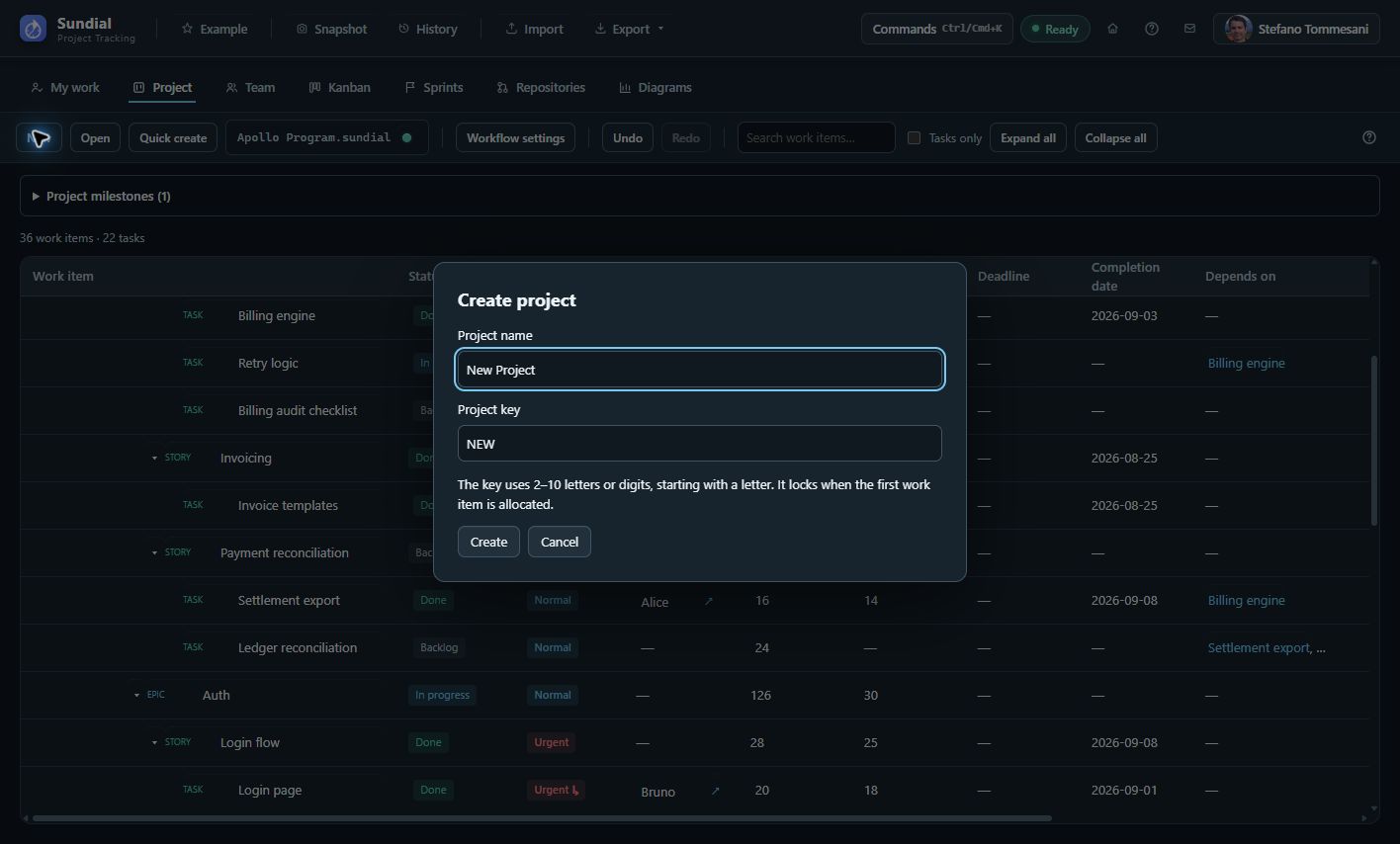
Figure 8. Current Create project dialog with Project name and Project key fields.
Choosing New in Team replaces the current project's roster and calendars. It does not create a separately saved Team file.
Automatic saving and recovery
Choose a project folder for ongoing work, especially for large projects or imports. A local folder is enough when you work alone; use a shared folder for collaboration. Grant folder access when prompted and keep the project connected so committed edits can save automatically.
Applying Project or Team forms, changing Kanban status, editing sprint plans, and Undo/Redo commit native changes and trigger saving. There is no separate disk-save step for each tab. Plain Ctrl+S does not apply a draft or create a reporting checkpoint; use Apply to commit and Snapshot for a reporting baseline.
If a new working project has no connected folder, open the red save-status indicator and use Retry saving to select an empty parent directory for its first save. A recovered project instead needs its existing folder: use Choose project folder in the popover and select the matching .sundial container. Do not select an empty folder for reconnection; it has no existing project to rejoin. Sundial checks the project identity before merging recovered changes with disk history. It tries to restore a remembered folder connection automatically when permission allows. Reconnection is for resuming an existing project; use Save a copy…, followed by Open, to work in a different location.
Browser recovery uses a small amount of browser storage shared with other retained recoveries, browser snapshots, and preferences. It keeps the project's editing history, which can outgrow that space as the project grows or accumulates edits. A large project may not fit at all. Recovery writes are also periodic, so a crash can lose recent edits even when space is available.
If Crash recovery is paused appears, newer edits may be missing from browser recovery. A crash may restore an older recovery point or leave no usable recovery for that project. Keep the session open and confirm that the current edits have saved to your project folder before closing it or clearing site data.
The browser recovery size limit does not apply to files saved in your chosen project folder. Edits successfully autosaved there remain saved even if browser recovery is full. If the folder is disconnected, use Choose project folder and select the original .sundial folder; if disk saving failed, restore access and use Retry saving in the popover. Confirm the indicator returns to green before relying on disk persistence.
Synchronization health is separate from local recovery. A share can be temporarily unavailable while edits remain in the browser. Sundial retries transient synchronization failures; use Retry synchronization after restoring access and review the remaining notices. Successful recovery does not prove that other users have received the edits.
Browser recovery belongs to the current browser profile and application origin. Clearing site data can remove it. Back up the complete native folder for a durable copy you can move between machines. Reporting snapshots are additional checkpoints and do not preserve the native collaboration history.