 Sundial
Kanban displays actionable leaves in columns for the project's configured workflow states. The default workflow has Backlog, In progress, Review, Blocked, and Done. Containers provide hierarchy context; only actionable leaves appear as cards.
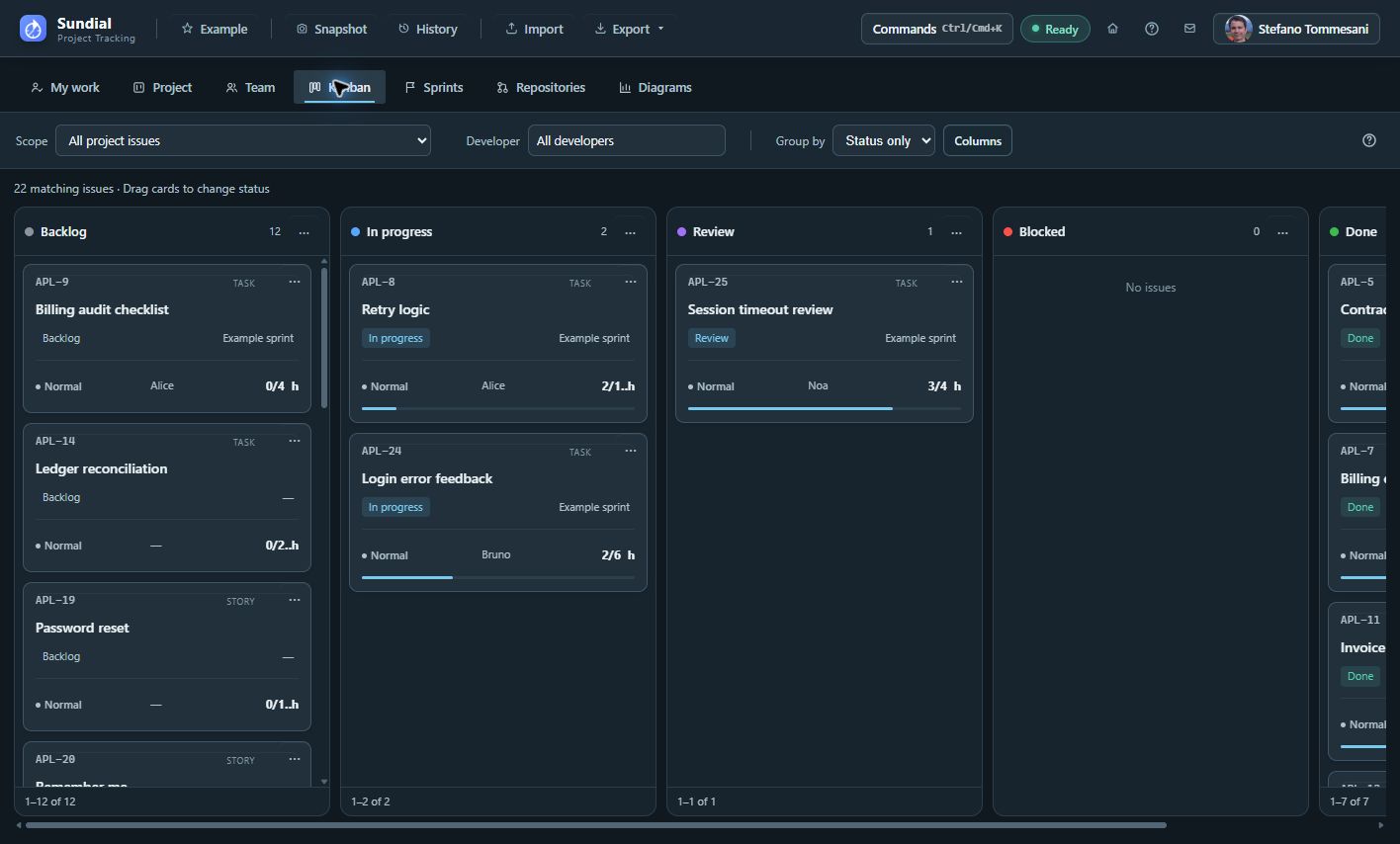
Figure 27. New Example Kanban board with Review, issue keys, assignees, priorities, effort, and filters.
Cards show the project issue key, work name, sprint, effective priority, type, assignee, and spent/estimated effort. Inherited priority carries an arrow. Use Workflow settings in Project to add or rename process steps and choose their scheduling categories.
Cards in states that schedule as in progress or blocked — In progress, Review, and Blocked with the default workflow — also carry a circular badge with the number of calendar days since the card entered its current state; Backlog and Done cards carry none. The count shows 0 on the entry day and resets on every state change. Its color signals staleness: blue up to 2 days, teal from 3, amber from 6, orange from 10, and red from 15. Review uses tighter thresholds — teal from 1 day, amber from 2, orange from 4, and red from 7 — because reviews should move faster than implementation work. Hover the badge for the full wording, such as 3 days in In progress. A gray ? badge means no state-entry date is recorded. Cards imported from a tracker count from their import date; earlier tracker history is not reconstructed.
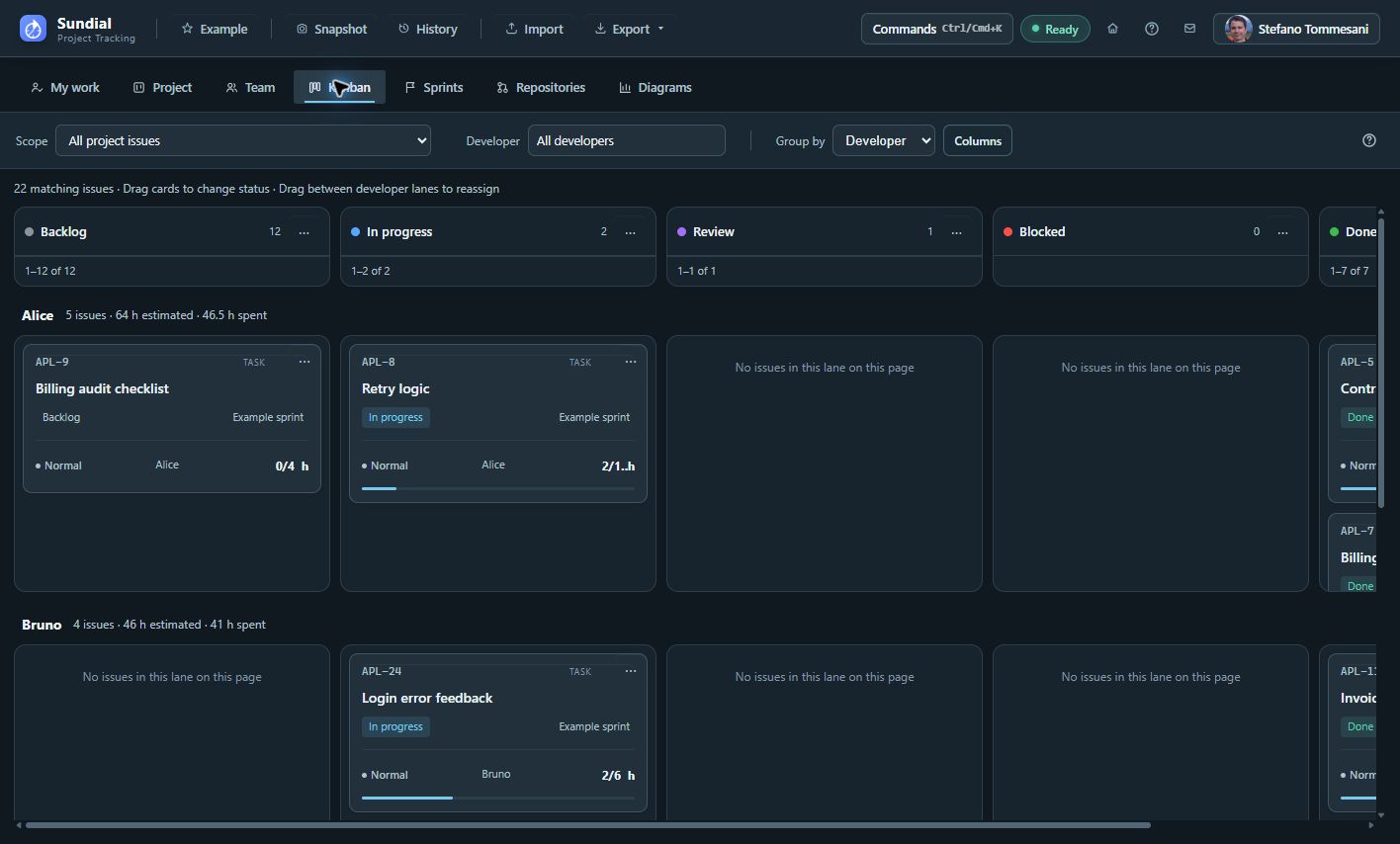
Figure 28. Kanban grouped by developer, with workflow columns, issue keys, inline controls, and forecast completion summaries.
Review and update work
- Open Kanban.
- Choose Scope → All project issues, No sprint, or a named sprint.
- Choose Developer to show all developers, a member, or unassigned work.
- Choose Group by → Status only, Developer, or Epic. Developer and Epic create swimlanes across status columns.
- Use Columns to hide or show status columns. Hiding a column does not change task status.
- Hover over a card's name, status, sprint, priority, assignee, or most likely estimate to edit that value inline. Use its key/type header to open the full form for descriptions, acceptance criteria, dependencies, recorded effort, or several changes together. Apply commits a form draft; inline choices commit immediately, and typed values commit on Enter or blur. The compact card retains its title, context, priority, assignee, spent/estimate footer, and progress indication.
- Drag a card into an allowed next-state column, or use the card's menu and Change status. The menu lists permitted destinations; a disallowed drop cannot change the task. With the default workflow, move active work through Review before Done. The change commits and saves automatically and refreshes the model. Same-category handoffs preserve lifecycle dates; category changes use the scheduling and completion rules described in the workflow guide.
With Group by → Developer, drag a card into another developer's lane to reassign it. Dropping into the same status column changes only the assignee; this is allowed even when that column is at its WIP limit. Dropping into a different status column and another lane commits the status and assignment together. Workflow transitions and destination WIP limits still apply to status changes. Empty developer lanes and the unassigned lane provide drop targets, and the drag preview identifies the reassignment.
Dropping into the same status and developer, or outside a valid target, leaves the item unchanged. Use Undo to reverse a committed move. Resolve any unapplied inspector draft before continuing an action that prompts you to review it. You can also change the assignee directly through the card's hover editor.
Each column shows up to 30 cards per page. Check the totals and pagination to see whether more work is available. The page size does not impose a work-in-progress or capacity limit. A missing assignee reference can appear separately from unassigned work; correct the reference in Project/Team.
Kanban filters affect the board only. Forecasts still use the full dependency graph and Team. Sprint scope is remembered for the project. A completed sprint's historical board is read-only; use Open live issue to edit the corresponding current task.